How To Use SGP To Rank and Value Players During the Season – Part 1 – Introduction to Rest of Season Projections

Welcome to the first part in a series of posts in which I’ll go through the process of plugging Steamer’s Rest of Season (RoS) projections into your existing ranking/dollar value spreadsheet so you can make informed and objective roster decisions during the season.

A few notes about the series:

Let’s Get Started

If you’re a frequent reader of this site, hopefully you spent the offseason toiling over a spreadsheet making projections, developing rankings, and calculating dollar values.

That dynamite spreadsheet you created has probably been sitting on the shelf for the last month accumulating dust.  But did you know you can still use it to make informed in-season roster decisions?

I’ll show you how in a second.

Avoid This Scenario

Once the season starts, we immediately become retrospective in our decision making. You navigate out to the free agent listing and you see the stats players have accumulated to date.  Some utility infielder with a .240 career average is sitting there staring at you with 5 HR and a .386 batting average to start the season.

This is bad.  We don’t draft based on last season’s stats, so why should we make current roster decisions about last week’s stats?

As we do during the draft, we should be making roster decisions based on projected or future performances.

Some sites do offer full season projections.  They are helpful, but they become less meaningful as the season progresses.  Full season projections are likely not being updated, and we don’t care about the stats that someone has already earned.

What we really want are rest of season projections.  Or what a player is going to do from here on out.

How To Obtain Rest Of Season (RoS) Projections

Continue reading “How To Use SGP To Rank and Value Players During the Season – Part 1 – Introduction to Rest of Season Projections”

In Season Player ID Map Update

I’m preparing to roll out another resource that will hopefully help bring clarity to your in-season moves (I think it’s going to be big!).  In preparation for this, I’ve gone through and done a Player ID Map update to include players that have recently become “fantasy-relevant”, in my mind.

You can download the updated map here.

A complete list of changes can be found in the “Change Log” tab of the spreadsheet.

ESPN_Player_ID

Some of the more notable additions to are:

If you’re new to the site, consider checking out these past posts that illustrate some interesting things you can do with player IDs.

Please let me know if I’ve missed anyone.  Stay smart.

How To Track Drafted Players In A Spreadsheet

I’ll paraphrase a reader question I recently received:

Hey, you with your big fancy spreadsheets.  I need a way to easily hide the players that have already been drafted so I don’t waste time digging around in a bunch of players that are no longer available.  Have any tips?

– Bill

Great question.  Let me show you how I do this.

But First…

We have three key Excel concepts or features you should understand.  If you’re already familiar with these, just skip down to the step-by-step instructions below.

  1. Named Ranges
  2. Data Validation
  3. Filtering

Named Ranges

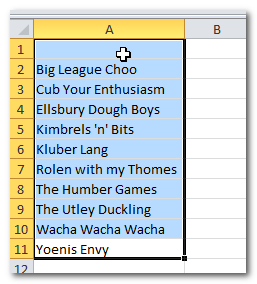
Excel allows you to create names for groups or blocks of cells.  Once established you can use this name in formulas instead of having to fully spell out the entire range of data again.  I find it a lot easier to deal with a name like “TeamNames” than it is to explicitly specify the area of a range like “Settings!$A$1:$A$10”.  Named ranges are a lot easier to remember and a lot less likely to result in errors.

Data Validation

Data validation ensures that information entered in a cell or calculated by the Excel fits specified criteria.    You could validate that information entered in the cell is a date or is larger than 0, for example.

In the example below we will create a drop down menu that lists each team in your fantasy league and validates that the selected value is spelled correctly and corresponds to a team in your league.

Filtering

Filtering is a function in Excel that allows you to hide entire rows of data that don’t meet certain requirements.  In this example we will filter the list of players to hide players that have been given a team (they have been drafted).

Step-By-Step Instructions

The following instructions will take you through the process of adding a column to track which players have been drafted and which team in your league selected each player.  We will create a drop down menu that lists all teams in your league and use this to document who was drafted and by what team.

These instructions assume you have some kind of a starting spreadsheet containing projections and rankings already.  If you don’t have such a starting point, skip to the end of this post for information on how to get here. Continue reading “How To Track Drafted Players In A Spreadsheet”